
PRINTER SETUP & troubleshooting
Set Up & Connect Your Printer
Install your printer, connect it to Wi-Fi, and complete your printer setup with guided assistance.
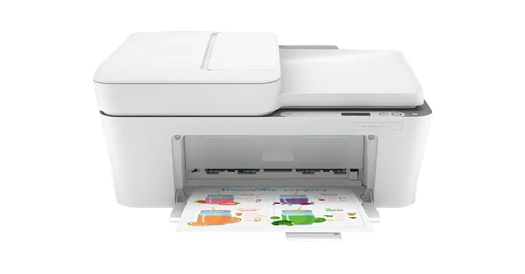
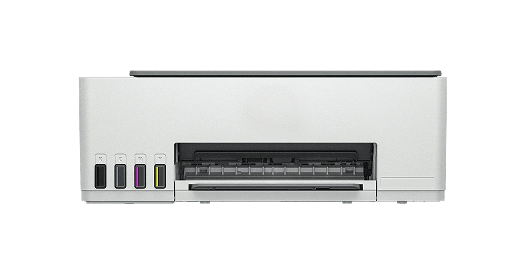
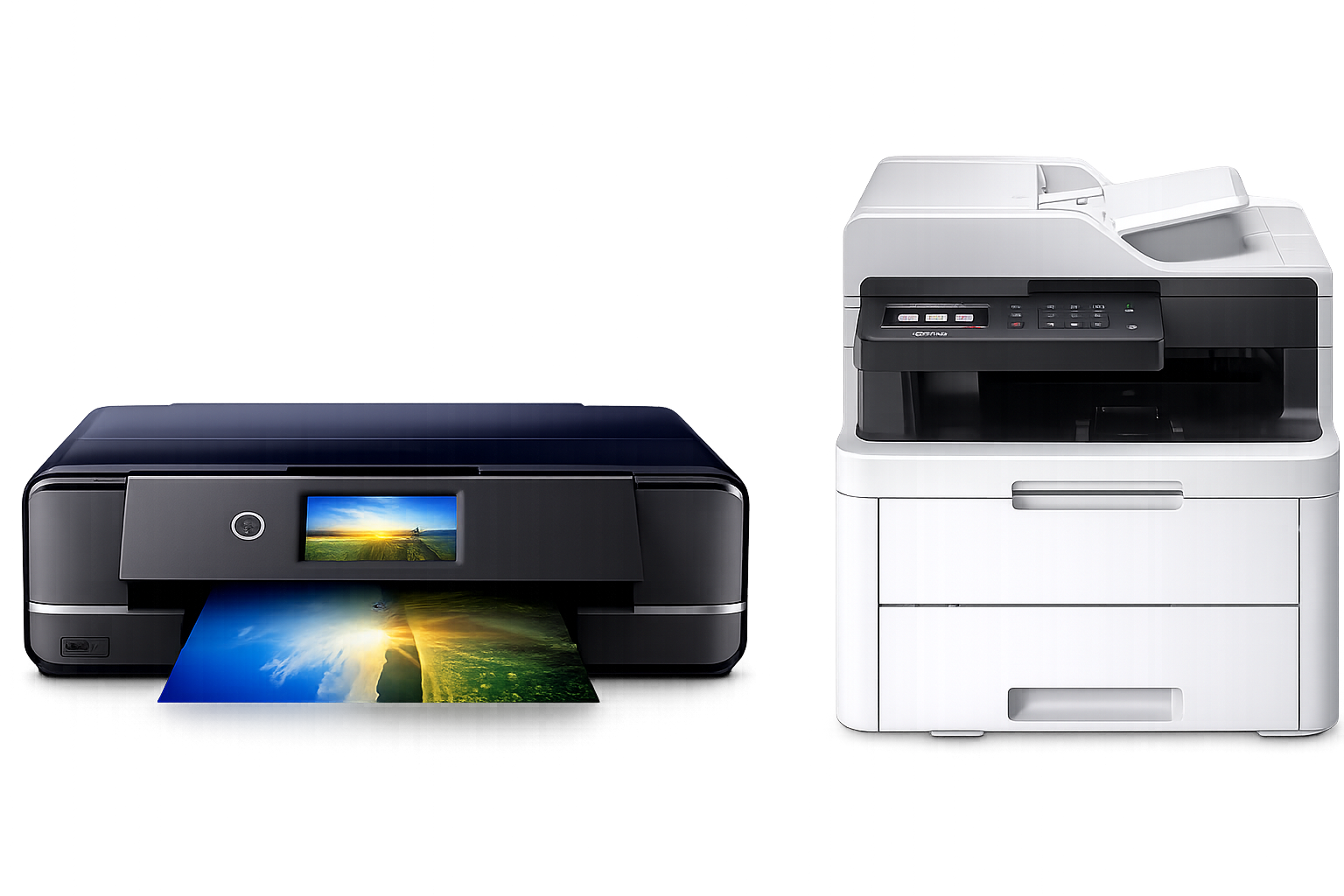
How to Set Up Your Printer
Setting up a printer for the first time may seem a little overwhelming, but the process is usually straightforward when followed step by step. Here are some basic steps to help you get started:
- Unpack the printer and place it on a stable surface near a power outlet. Connect the power cable and turn the printer on.
- Install the ink or toner cartridges in the appropriate slots according to the printer’s instructions.
- Load a stack of compatible paper into the input tray. Make sure the paper size and type match the printer’s requirements.
- Complete the initial setup on the printer’s display screen by selecting your preferred language, region, date, and time settings.
- Connect the printer to your computer, laptop, or smartphone by installing the required software or using a wireless connection.
- Once everything is configured, print a test page to confirm that the printer is set up correctly and ready to use.
How to Fix an Offline Printer
If your printer suddenly stops printing, it may have gone offline. This is a common issue and can often be resolved by performing a few basic checks.
- Check all cable connections. If your printer is connected using a USB cable, ensure it is securely connected to both the printer and your computer.
- If you are using a wireless printer, verify that it is connected to the correct Wi-Fi network and that the connection is stable.
- Open the print queue on your computer and clear any pending or stuck print jobs that may be preventing the printer from responding.
- Check your printer drivers. Outdated or corrupted drivers can interfere with communication between the printer and your device. Installing the latest driver version may help resolve the issue.
- Run the printer’s built-in troubleshooting or diagnostic tools to identify and correct common printing problems.
- Inspect the printer for paper jams. Carefully remove any jammed paper to prevent damage to the printer’s internal components.
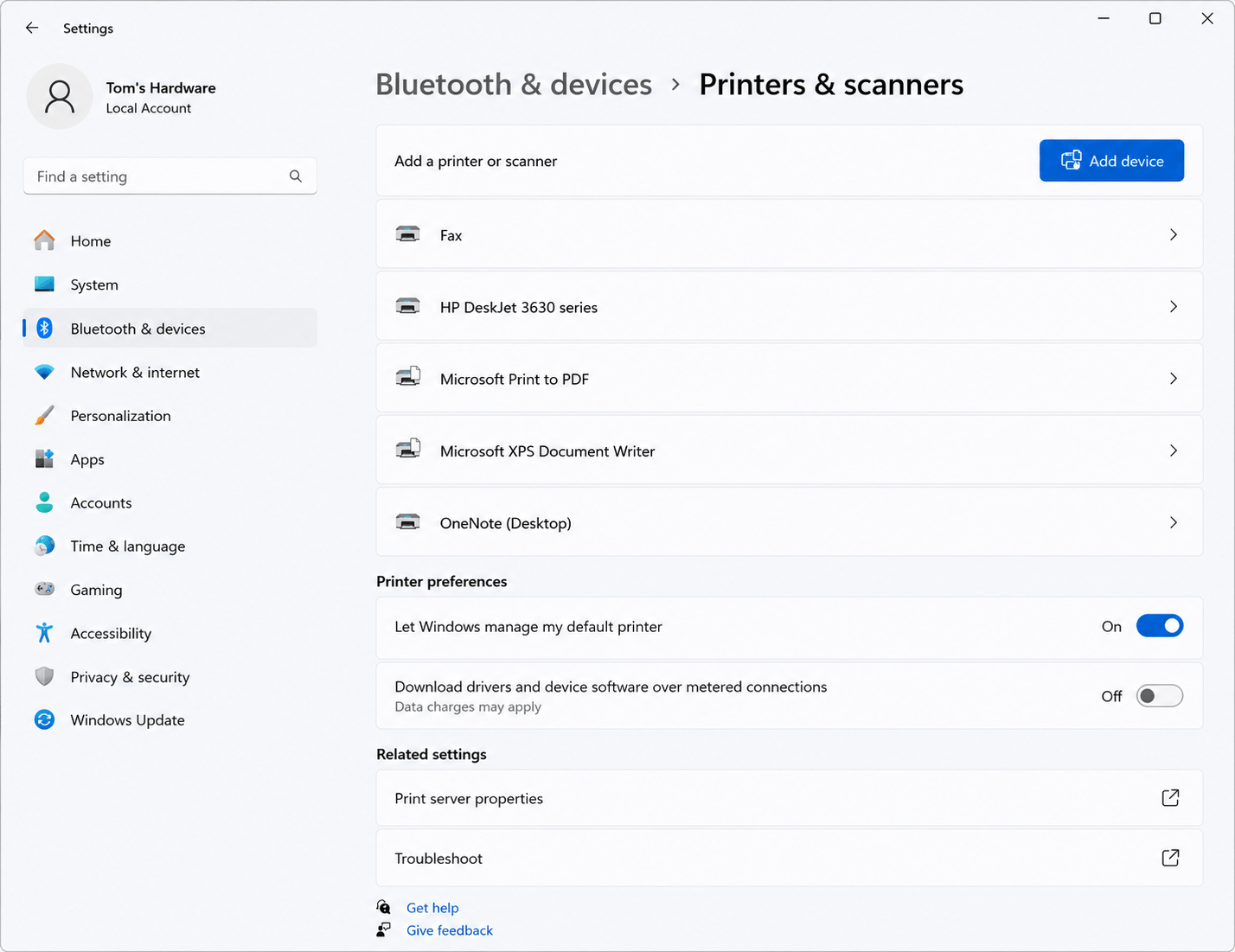
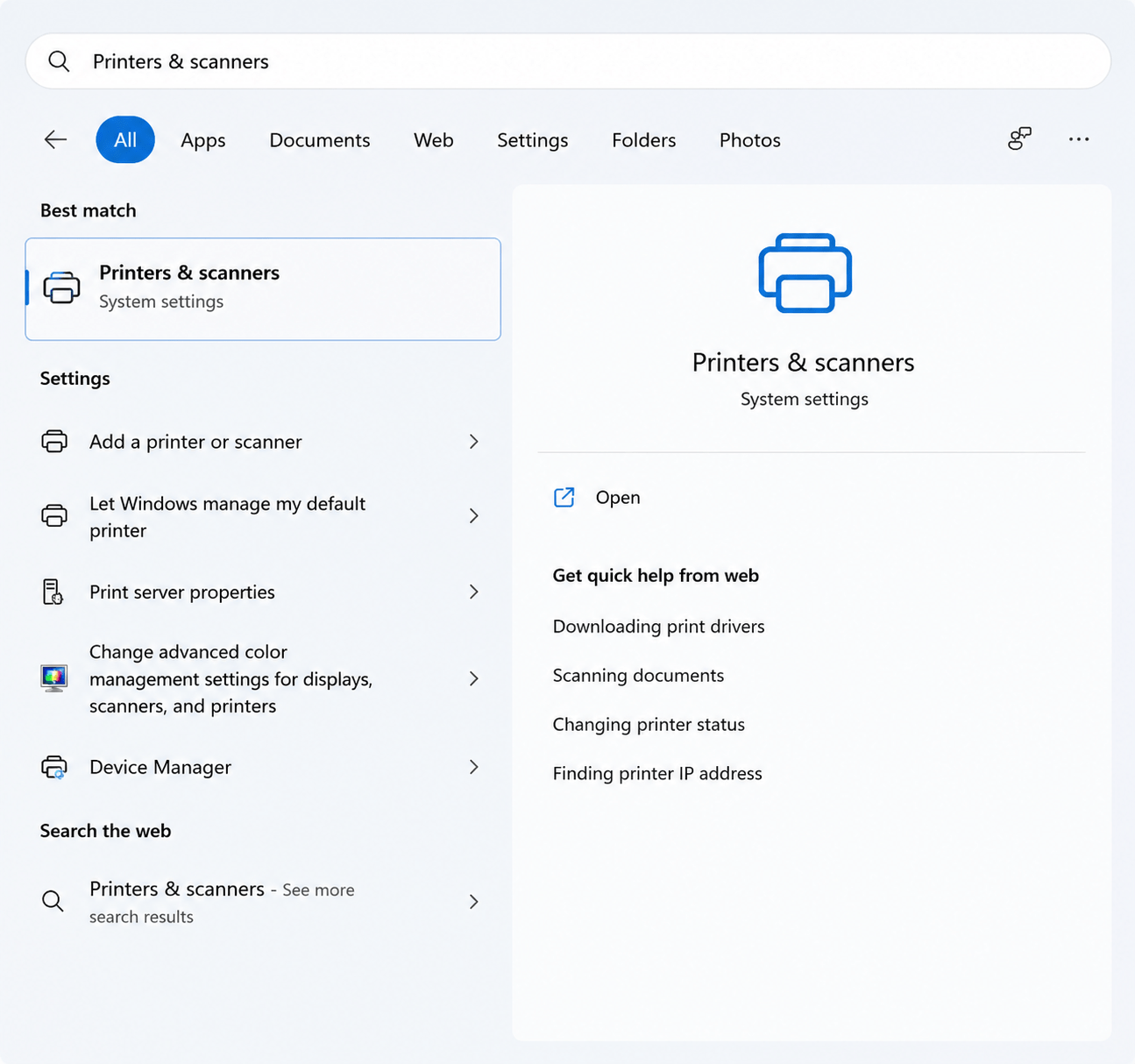
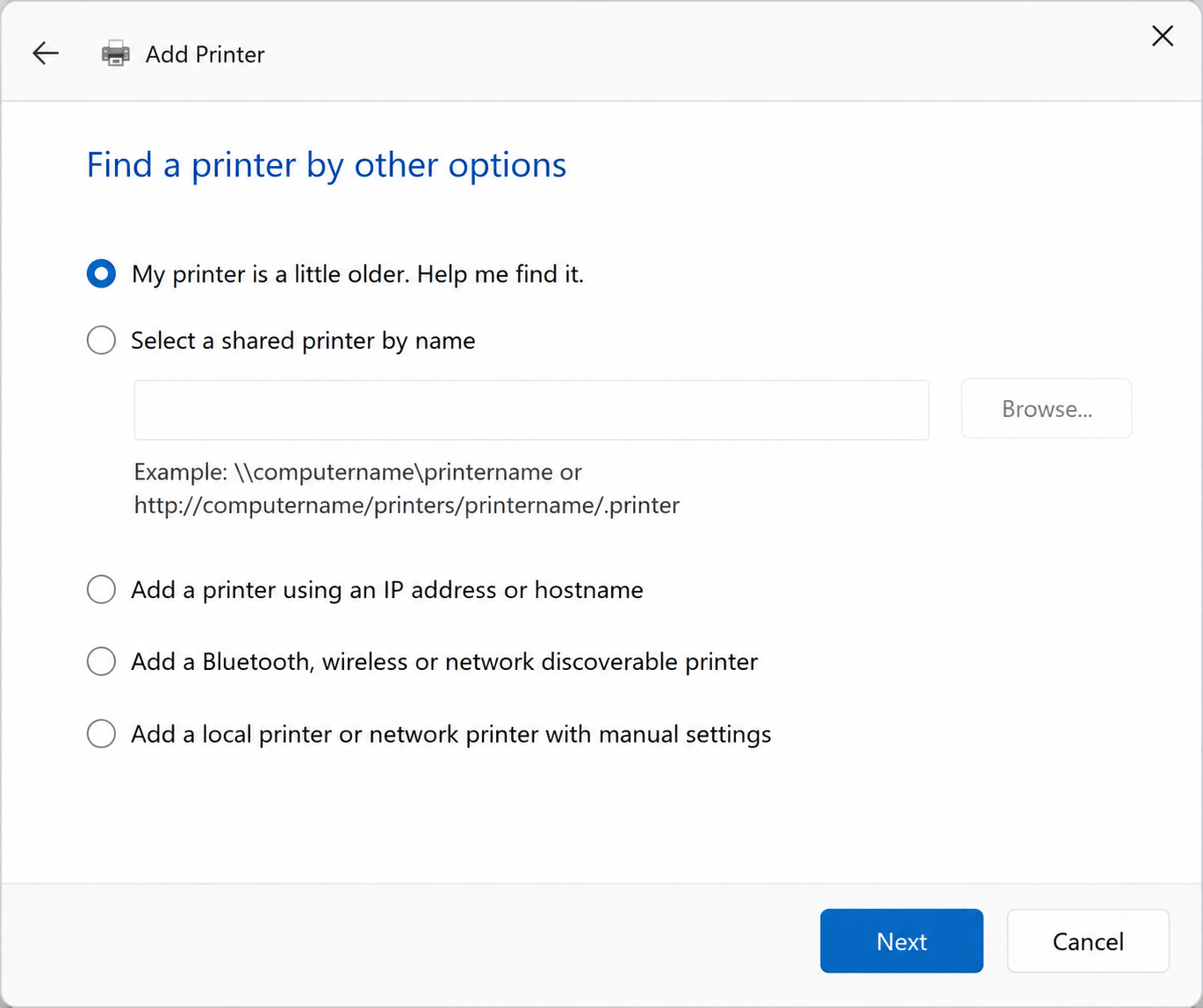
How to Add a Printer Manually
If Windows does not automatically detect your printer or device, you can add it manually using the available setup options.
- Open the Add Printer or Add Device settings and select “The device I want isn’t listed.”
- Choose the appropriate installation method, such as using an IP address, network name, or shared printer path.
- Select “Add a local printer or network printer with manual settings” if you need to install a specific driver or use a custom port.
- Follow the on-screen instructions, select the correct driver, and complete the installation process.
- After installation, print a test page or perform a quick test to confirm the device is working properly.
Print Anywhere, Anytime
Maximize Your Printer with Updated Drivers
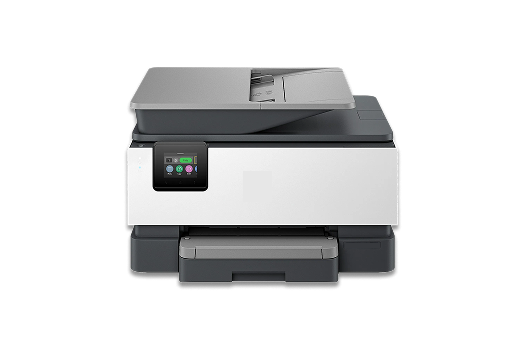
Smart Printer Setup is an all-in-one solution designed to help you set up, connect, and manage your printer with ease. Whether you’re printing from a desktop, laptop, or mobile device, the platform helps ensure a smooth and reliable printing experience across your network.
Designed for both home and business users, Smart Printer Setup provides a simple and flexible way to manage printing needs. Whether you prefer local installation or cloud-based accessibility, it helps keep your printer connected, updated, and ready to use whenever you need it.
Step 1: Reconnect the USB Cable Properly
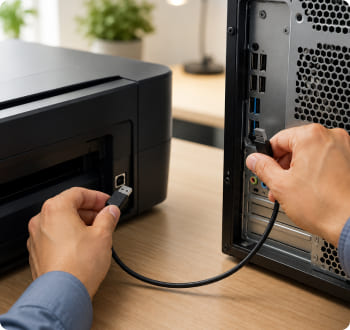
Ensure a secure physical connection between your printer and computer.
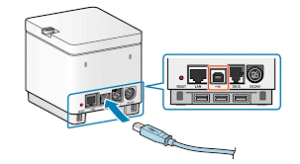
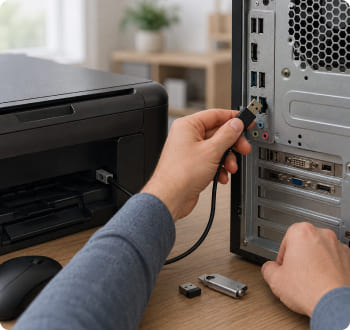
Unplug the USB cable from both the printer and the computer.
- Wait a few seconds before reconnecting.
- Firmly plug the cable into both ends.
- Restart the printer installation process.
Step 2: Test the USB Port Functionality
Make sure the USB port you’re using is working correctly.
- Try connecting the printer to a different USB port.
- Alternatively, test the current port by connecting another USB device.
Step 3: Use a Different USB Cable
A faulty cable might be the problem.
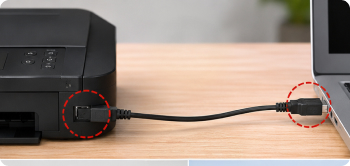
- Swap the existing cable with a known working or new USB cable.
- Reconnect the printer and computer, then restart the setup.
Step 4: Disconnect Unnecessary USB Devices
Too many connected devices can cause conflicts.
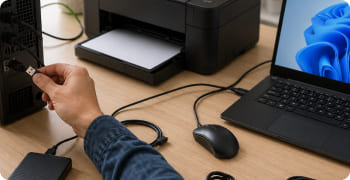
- Unplug all non-essential USB devices (e.g., external drives, cameras).
- Keep only the mouse, keyboard, and printer connected.
- Retry the installation.
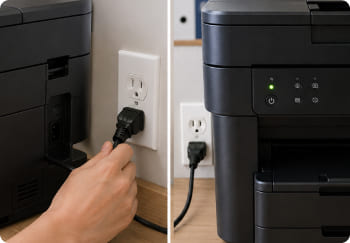
Step 5: Perform a Printer Power Reset
A quick reset can restore USB communication.
- Turn off the printer and unplug it from the wall.
- Wait at least 60 seconds.
- Plug it back into a direct wall outlet and power it on.
If the setup resumes automatically, proceed with installation. Otherwise, run the installer manually.
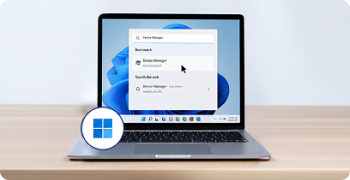
Step 6: Update Drivers via Device Manager
Ensure the correct drivers are in place.
- Open Device Manager from the Start menu.
- Expand “Printers” or “USB Controllers”.
- Locate your printer, right-click it, and choose Update driver → Search automatically for drivers.
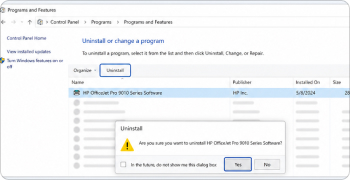
Step 7: Uninstall Previous Printer Software
Old or conflicting installations may block setup.
- Go to Control Panel > Programs > Uninstall a Program.
- Find and uninstall your printer software.
- Reboot your computer before reinstalling.
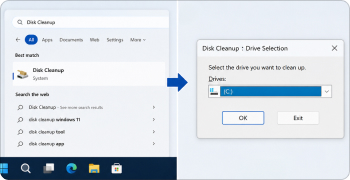
Step 8: Clear Temporary Files
Clean out junk files that might interfere with installation.
- Search for and open Disk Cleanup.
- Choose your system drive (usually C:).
- Select appropriate file categories and click OK to remove them.
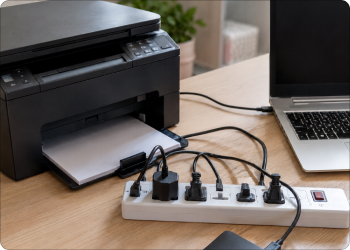
Step 9: Perform a Clean Boot to Disable Interference
Eliminate background software conflicts.
- Pen System Configuration (search “msconfig”).
- Under the “General” tab, select Selective Startup and uncheck Load startup items.
- Go to the “Services” tab, check Hide all Microsoft services, and then disable the remaining services.
- Restart your computer and run the printer setup again.
Printer Setup Assistance
Simple guidance for setting up new printers and connecting them to your device.
WI-FI CONNECTION HELP
Assistance with wireless printer setup, network reconnection, and connectivity-related issues.
PRINTER TROUBLESHOOTING
Help resolving offline printers, printing errors, and common printer setup problems.
FAST & RELIABLE GUIDANCE
Step-by-step instructions designed to make printer setup and troubleshooting easier.
SIMPLE SETUP PROCESS
Choose your printer issue, start setup, and follow easy instructions to get started.
SAFE & SECURE SUPPORT
Guidance for printer setup, connectivity, and troubleshooting in a safe and secure way.